 wapday Download Latest Pro Soccer Games
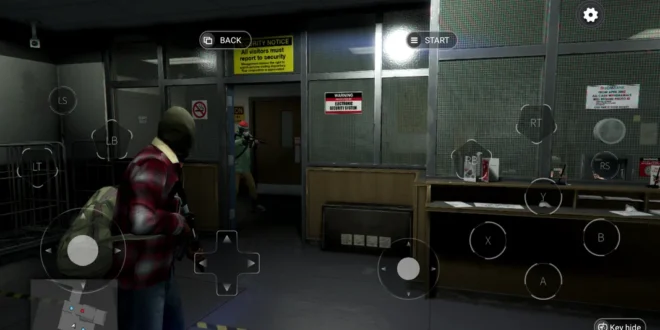
Imagine launching a demanding PC game from your Android phone without carrying a gaming laptop everywhere. That idea sounds almost ridiculous until you understand cloud gaming.
Mogul Cloud attracted attention by offering an Android-based way to access PC and console-style games through cloud technology. Instead of forcing your phone to render every frame locally, the service could handle much of the heavy work remotely and stream the gameplay to your device.
That approach makes Mogul Cloud APK interesting for Android gamers with modest hardware. But how does it actually work? Can you really play PC games on an Android phone, and what kind of internet connection do you need?
Let’s break it down without turning this into a technology lecture.
What Is Mogul Cloud?
Mogul Cloud Game-Play PC Games was an Android cloud-gaming application associated with Popular Cloud Game- Mogul Ltd. Archived app information describes the application as a platform for accessing PC and console-style games from mobile devices.
The app’s descriptions promoted access to games and gaming platforms involving PC titles, Steam, Epic Games, PPSSPP, and other gaming categories.
The important word here remains cloud.
Mogul Cloud wasn’t simply transforming your Android phone into a gaming PC. Instead, cloud infrastructure could perform the demanding processing while your Android device handled the display, controls, and network communication.
How Can You Play PC Games on Android?
The concept becomes easier when you compare cloud gaming with YouTube.
When you watch a YouTube video, your phone doesn’t create the entire video. A remote server handles the video processing and sends the finished stream to your device.
Cloud gaming follows a similar basic principle, except you control what happens on the screen.
The Cloud Gaming Process
A typical session follows this pattern:
1. You open the cloud gaming application.
2. You select a supported game.
3. A remote gaming system runs the game.
4. The system sends the gameplay video to your phone.
5. Your phone sends your controls back to the remote system.
6. The remote system reacts and sends the updated video back.
That process happens continuously while you play.
So yes, you can potentially play a demanding PC game on an Android device without your phone rendering the entire game locally.
Pretty clever, right?
Why Cloud Gaming Makes Sense for Android
Modern PC games can demand powerful CPUs, GPUs, and plenty of memory.
Most budget Android phones simply don’t have that hardware.
A cloud gaming service changes the equation.
Instead of asking:
«“Can my phone run this PC game?”»
You start asking:
«“Can my phone stream this game smoothly?”»
That difference matters.
A modest Android phone might struggle to render a demanding 3D game locally, yet still stream a remotely rendered game if the device can maintain a strong enough connection.
Mogul Cloud and PC Gaming
Mogul Cloud’s archived descriptions promoted access to various PC and console-style games.
Examples mentioned in archived listings include:
– GTA V
– Elden Ring
– Fortnite
– FIFA
– NBA 2K
– Cyberpunk 2077
– Watch Dogs
– The Witcher
– Just Cause
– Hitman
– Dead by Daylight
– Stardew Valley
The app also referenced platforms and technologies such as Steam, Epic Games, and PPSSPP.
However, don’t interpret an old game list as a guarantee that every title remains available today.
Cloud services can change their catalogues, servers, subscriptions, regions, and supported games.
What Makes Playing PC Games on Mobile Interesting?
The biggest advantage involves hardware flexibility.
You don’t necessarily need a flagship Android phone with the latest GPU to experience a demanding game through cloud streaming.
That can help players who own:
– Budget Android phones
– Older smartphones
– Mid-range devices
– Devices with limited internal storage
– Phones that can’t run demanding games natively
[10/7/2026 2:06 AM] Content store 2: Imagine having a phone with 4 GB RAM that can’t locally handle a huge PC title but can stream it from a remote machine.
That’s the entire appeal.
Your Phone Becomes the Screen and Controller
Cloud gaming shifts some of the responsibility away from your phone.
The phone mainly needs to:
– Receive the video stream
– Decode the video
– Send controller inputs
– Maintain the network connection
– Display the game
The remote server handles much of the actual game processing.
That means the phone’s hardware requirements can remain lower than those of a traditional gaming PC.
Internet Connection Matters More Than RAM
Here’s where cloud gaming gets interesting.
Your phone might have 12 GB of RAM and a powerful processor, but that won’t rescue a terrible internet connection.
Cloud gaming constantly moves data between your phone and the remote server.
A weak connection can create:
– Input delay
– Stuttering
– Blurry video
– Sudden resolution changes
– Disconnects
– Long loading times
– Audio interruptions
Ever pressed a button and watched your character respond several moments later?
That’s latency, and competitive gamers absolutely hate it.
Wi-Fi or Mobile Data?
For cloud gaming, I’d normally choose stable Wi-Fi whenever possible.
A strong Wi-Fi connection can provide consistent latency and reduce sudden changes in connection quality.
However, a strong 4G or 5G connection can also support cloud gaming.
The key word remains stable.
A fast connection that constantly fluctuates can produce a worse experience than a slightly slower connection that stays consistent.
What Should You Look For?
Before starting a long gaming session, consider:
– Stable download speed
– Low latency
– Strong signal
– Minimal network congestion
– Enough monthly data
Cloud gaming can consume considerable data because your phone continuously receives gameplay video.
If you have a limited mobile data plan, keep an eye on usage.
Can You Play PC Games on a Low-End Android Phone?
Potentially, yes.
That’s one of cloud gaming’s biggest attractions.
A low-end phone doesn’t necessarily need to render the full game locally.
However, “low-end phone” doesn’t mean “any Android phone.”
Your device still needs enough performance to decode the incoming stream and run the cloud application.
Older archived Mogul Cloud versions supported relatively old Android releases, although compatibility varied between versions.
So, don’t assume that an old phone automatically guarantees smooth gameplay.
Touch Controls vs Physical Controllers
Touch controls can work for many games, but they don’t always feel ideal.
Imagine playing a fast racing game while covering half the screen with your fingers.
Not exactly elegant.
Touch Controls
Touch controls offer convenience because you don’t need additional hardware.
They work reasonably well for:
– Strategy games
– Turn-based games
– Casual games
– Some RPGs
– Slower gameplay
Bluetooth Controllers
A physical controller makes more sense for games that require precise movement.
A compatible Bluetooth controller can provide:
– Better analog movement
– Physical triggers
– More precise aiming
– Faster button access
– A more traditional console feel
For racing games and action titles, I’d choose a controller whenever possible.
Screen Size Also Matters
Playing PC games on a 6-inch Android display can feel very different from playing on a 24-inch monitor.
The phone offers portability, but the monitor offers immersion.
Still, Android phones have one major advantage: convenience.
You can play from:
– Your bed
– A bus
– A hotel room
– A waiting area
– Your living room
– Almost anywhere with a suitable connection
That’s hard to beat.
Mogul Cloud vs Local Android Gaming
Which approach makes more sense?
Let’s compare them.
[10/7/2026 2:06 AM] Content store 2: Feature| Cloud Gaming| Native Android Gaming
Processing| Remote server| Phone
Internet| Usually essential| Often optional
Phone hardware demand| Lower| Higher
Latency| Depends on network| Usually lower
Storage requirement| Often lower| Can be large
Offline gaming| Generally unsuitable| Often available
PC games| Potentially accessible| Requires Android version
Data usage| High| Usually lower
Cloud gaming wins when your phone lacks powerful hardware but your internet connection performs well.
Native Android gaming wins when you have a capable phone and want offline access with minimal latency.
Mogul Cloud vs PC Emulation
You should also understand the difference between cloud gaming and emulation.
An emulator attempts to reproduce another gaming platform locally on your device.
PPSSPP, for example, runs PSP games on supported devices.
Cloud gaming takes a different route.
The remote machine runs the game while your phone receives the video stream.
That makes cloud gaming more suitable for extremely demanding PC games, while local emulation can provide better responsiveness and offline functionality for supported platforms.
What About Storage?
One interesting advantage of cloud gaming involves storage.
A modern PC game can consume tens or even hundreds of gigabytes on a computer.
Your phone obviously can’t store every game you want to play.
Cloud gaming can reduce that problem because the remote system handles the game installation.
Your phone mainly needs space for the application and its supporting files.
That doesn’t mean cloud gaming uses zero storage or data. It simply shifts much of the storage burden away from your device.
Why Cloud Gaming Can Feel Delayed
Cloud gaming introduces another step between your input and the game.
With local gaming:
Controller → Phone → Game → Screen
With cloud gaming:
Controller → Phone → Internet → Remote Server → Game → Internet → Phone → Screen
See the difference?
Every extra network trip creates opportunities for latency.
That’s why cloud gaming works best when you have a strong connection to a nearby server.
A great internet speed alone doesn’t guarantee low latency.
Common Problems When Playing PC Games on Android
Even when everything looks correct, you might encounter problems.
1. Input Lag
Your controls feel delayed.
Solution: Try a stronger connection or move closer to your Wi-Fi router.
2. Blurry Graphics
The service may reduce streaming quality when network conditions drop.
Solution: Improve connection stability before increasing quality settings.
3. Stuttering
The stream may struggle to maintain a consistent frame delivery.
Solution: Close bandwidth-heavy applications and reduce network congestion.
4. Disconnects
The cloud session can terminate when your connection drops.
Solution: Use stable Wi-Fi or reliable mobile data.
5. Overheating
Even cloud gaming can make your phone work hard while decoding video and maintaining the connection.
Solution: Remove thick cases during long sessions and give your phone ventilation.
Mogul Cloud APK Availability
If you’re currently searching for Mogul Cloud APK play PC games, you should know that archived information matters here.
AppBrain reports that Mogul Cloud Game-Play PC Games left Google Play on August 22, 2024, and lists version 1.8.6 as its last available version. The archived listing also reports more than 10 million downloads.
That means current APK searches may lead you to third-party archives rather than an official Google Play listing.
Treat those downloads carefully.
Check APK Details
Before installing an archived APK, check:
– Application name
– Package name
– Version number
– Android compatibility
– CPU architecture
– File size
– Digital signature where available
Archived listings identify the package as com.mogul.flutte and document multiple versions and architectures.
Don’t install random “Mogul Cloud Premium Unlocked” packages simply because a website promises unlimited access.
[10/7/2026 2:06 AM] Content store 2: That sounds like a great deal until your phone starts doing things you never asked it to do. :/
Safety Tips for APK Downloads
Third-party APK files require extra caution.
If you decide to investigate an archived Mogul Cloud release, use these precautions:
1. Prefer reputable APK archives.
2. Scan downloaded files with trusted security software.
3. Avoid suspicious modified or “premium unlocked” versions.
4. Check requested permissions.
5. Keep Android security protections enabled.
6. Don’t disable security features just to install an APK.
7. Avoid websites that force additional downloads.
A cloud gaming application shouldn’t need bizarre permissions unrelated to gaming.
If an APK asks for access that makes no sense, stop and investigate.
Is Mogul Cloud Worth Trying?
That depends on what you want.
If you own a weak Android phone but have reliable internet, cloud gaming can make a lot of sense.
If you already own a powerful gaming phone and prefer offline gaming, local Android games or emulation may suit you better.
Here’s my quick breakdown:
Choose cloud gaming if you want:
– Access to demanding games
– Lower phone hardware requirements
– Less local game storage
– PC-style gaming on Android
– Portable gaming
Choose local gaming if you want:
– Offline play
– Lower input latency
– No constant streaming
– More control over game files
– Less dependence on servers
IMO, neither approach completely replaces the other.
Final Thoughts
Mogul Cloud APK represents an interesting idea for Android gamers who want to play PC-style games on a mobile device.
Instead of requiring your phone to perform all the heavy graphics processing, cloud gaming moves much of that workload to remote infrastructure and streams the gameplay back to your Android device.
That approach can make demanding games accessible on hardware that couldn’t run them locally.
However, your internet connection becomes just as important as your phone. A powerful connection with low latency can create a surprisingly good experience, while unstable connectivity can turn even an impressive cloud service into a frustrating mess.
Mogul Cloud’s Google Play availability has also changed, so anyone looking for an archived Mogul Cloud APK should verify the source, version, architecture, and security before installing anything.
At the end of the day, cloud gaming gives Android users something pretty cool: the ability to carry a window into PC gaming in their pocket.
Just remember to bring your controller, your charger, and—most importantly—good Wi-Fi.
Because no amount of fancy cloud technology can save you when your internet decides to disappear during the final boss fight. 🙂