 wapday Download Latest Pro Soccer Games
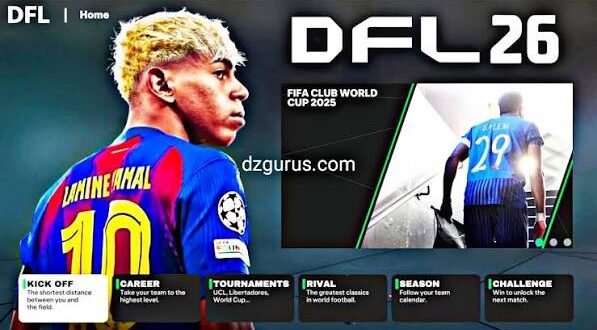
Installing a DFL 26 APK OBB DATA modification on Android sounds easy until the game refuses to launch, shows a black screen, or crashes before you even reach the main menu. Then suddenly, that five-minute installation turns into an unwanted IT support session.
If you’re dealing with DFL 26, the good news is that most setup problems have straightforward causes. The key involves understanding what the APK, OBB, and DATA files do, keeping compatible files together, preparing enough storage, and avoiding random files from unrelated versions.
One important clarification matters first: DFL 26 usually refers to an unofficial football-game modification, rather than an official standalone release from a major publisher. Different DFL 26 builds can therefore use different files, features, and installation methods.
So, before you start moving folders around like you’re defusing a bomb, let’s break down the setup properly.
What Is DFL 26 APK OBB DATA?
DFL 26 typically appears as a modified football game package for Android. Depending on the particular build, the modification may include updated squads, kits, player faces, competitions, menus, graphics, or other custom content.
The terms APK, OBB, and DATA describe different parts of the Android game package.
What Does the APK Do?
The APK represents the Android application package.
Think of it as the part that tells Android how to install and launch the application. Without a compatible APK, the rest of the game files cannot do much.
The APK may contain:
– The application itself
– Core game instructions
– Android resources
– Basic interface components
– Information Android needs to launch the app
What Does the OBB File Do?
An OBB file can hold larger game resources that don’t fit conveniently inside the APK.
Depending on the modification, these resources might include:
– Stadium assets
– Audio
– Graphics
– Textures
– Gameplay resources
– Other large game files
Not every Android game uses OBB files, so don’t assume every DFL 26 version needs one.
What Does the DATA Folder Do?
DATA files can contain additional game information required by a particular modification.
A DFL 26 mod might use DATA files for things such as:
– Player databases
– Kits
– Faces
– Menus
– Graphics
– Save-related resources
– Custom modifications
The exact structure varies between releases.
Check the DFL 26 Version Before Installing
This step can save you a lot of frustration.
Don’t download an APK, find an OBB from another website, and assume they’ll work together because both files mention “DFL 26.”
Use files that belong to the same release whenever possible.
Why does this matter? A modified APK may expect specific files, folders, databases, or resources. If you give it something different, the application may crash or fail to load.
Check These Details
Before installation, look for:
– Version number
– APK architecture requirements
– Android compatibility
– OBB requirement
– DATA requirement
– Installation instructions
– Storage requirements
– Mod features
If the creator provides a specific setup method, follow that method rather than combining instructions from several unrelated releases.
Prepare Your Android Phone
Before installing DFL 26, prepare your phone first.
You need enough storage, a compatible Android version, and reasonable free RAM. You should also close demanding applications before starting the installation.
Free Enough Storage
Don’t look only at the APK size.
A football modification can contain large graphics, stadiums, kits, faces, audio, and other resources. Your phone also needs temporary space while Android processes files.
I recommend keeping several gigabytes of free internal storage whenever possible.
For example, if your phone has only a few hundred megabytes left, don’t expect a large game installation to go smoothly.
Your phone isn’t a magician.
Back Up Important Files
If you already have another version of the game installed, protect your important save files first.
[10/7/2026 2:27 AM] Content store 3: A new modification may overwrite existing data or use a different file structure.
Before making changes, consider backing up:
– Save files
– Career progress
– Custom settings
– Existing game data
Never delete an old installation until you know that you no longer need its saves.
This small step can save hours of progress.
Installing the DFL 26 APK
Once you’ve confirmed that your files match, you can begin the Android installation process.
Step 1: Verify the APK
First, make sure you have the correct APK for your DFL 26 version.
Avoid installing an APK from an unrelated release.
If Android displays a security warning, don’t blindly ignore it. Check the source and file before continuing.
Step 2: Install the Application
Install the APK through Android’s normal installation process if your device permits it.
If Android refuses the installation, don’t immediately assume the APK has failed.
The problem could involve:
– An incompatible Android version
– Insufficient storage
– An existing conflicting package
– A damaged APK
– An incompatible architecture
– Security restrictions
Identify the error before changing other files.
Setting Up OBB Files
If your DFL 26 release includes an OBB file, follow the folder structure specified by that release.
Different Android versions can handle application storage differently, so avoid blindly copying folders into random locations.
The game needs to find the OBB in the location its package expects.
Why OBB Placement Matters
Imagine giving someone an address but changing the street name halfway through the journey. They might have the correct destination, but they still won’t find it.
The same basic idea applies to game resources.
Correct file + correct location + compatible APK = much better chance of a successful launch.
If the game reports missing resources after installation, check the OBB requirements first.
Setting Up DATA Files
DATA installation follows the same principle.
Use the folder structure that belongs to your specific DFL 26 modification.
Don’t copy DATA from another version simply because the folder names look similar.
Why Mixing DATA Files Causes Problems
A modified football game may rely on specific databases and resources.
One release might include updated teams while another includes different graphics. Combining them can produce:
– Crashes
– Missing kits
– Incorrect player faces
– Missing menus
– Freezing
– Database errors
Keep each modification’s files together.
FYI, this rule saves a surprising amount of troubleshooting time.
Launch DFL 26 for the First Time
After installation, launch the game and give it some time to initialise.
The first launch can take longer than subsequent launches because the game may need to process resources.
Don’t immediately close the application after a few seconds.
If the game loads successfully, check the main menu before starting a long career.
Look for:
– Team names
– Player squads
– Kits
– Menus
– Graphics
– Audio
– Competitions
– Controls
This quick inspection can reveal installation problems before you invest time in the game.
What If DFL 26 Shows a Black Screen?
A black screen can point toward several issues.
First, restart the game and your phone.
Then check:
1. APK compatibility.
2. OBB requirements.
3. DATA placement.
4. Available storage.
5. Android compatibility.
6. Graphics resources.
7. Whether you mixed files from another version.
If the game works after removing a particular modification or texture pack, that file probably caused the problem.
What If DFL 26 Crashes Immediately?
Immediate crashes often point toward incompatible files or system compatibility.
Start with the simplest checks.
Quick Crash Checklist
– Confirm the APK version.
– Confirm the OBB version.
– Confirm the DATA version.
– Restart the phone.
– Free additional storage.
– Close background applications.
– Check Android compatibility.
– Reinstall the complete matching package if necessary.
Don’t randomly replace individual files.
[10/7/2026 2:27 AM] Content store 3: If you replace five files simultaneously, you won’t know which change fixed the problem—or which one caused another problem.
Fixing Lag After Installation
A successful installation doesn’t guarantee perfect performance.
Your phone still needs to handle the game’s graphics and processing requirements.
Lower Graphics Settings
If DFL 26 offers graphics options, reduce demanding settings on lower-end devices.
Try:
– Lower texture quality.
– Reduce resolution where available.
– Disable unnecessary visual effects.
– Close background applications.
– Keep the phone cool.
Smooth gameplay matters more than maximum graphics.
A football game should feel responsive. You don’t need every blade of grass rendered in cinematic detail if your striker takes three seconds to react.
DFL 26 APK OBB DATA vs Single APK Games
You might wonder why some Android games require multiple files while others use a single APK.
The main difference comes from how developers or mod creators package the game.
Setup| Typical Advantage| Possible Problem
Single APK| Simple installation| Can contain fewer resources
APK + OBB| Separates large resources| Requires correct file placement
APK + DATA| Allows additional custom files| Folder compatibility matters
APK + OBB + DATA| Supports larger/custom modifications| More setup steps
For heavily modified football games, multiple files can allow creators to include more resources.
However, more files also create more opportunities for installation mistakes.
Keep Different DFL 26 Versions Separate
Suppose you want to test two DFL 26 updates.
Don’t immediately combine their files.
Different versions may contain different databases, graphics, and application packages.
If you want to experiment, keep backups and clearly label your files.
For example:
– DFL 26 Version A
– DFL 26 Version B
– Original save
– Custom graphics
– Backup DATA
This simple organisation makes troubleshooting much easier.
Stay Careful With APK Downloads
Search results for phrases like DFL 26 APK OBB DATA latest update can lead to many unofficial websites.
Some sites may provide legitimate fan-made modifications, while others may package unwanted software with APK files.
Before installing an unfamiliar APK, consider:
– Where the file came from.
– Whether the website looks trustworthy.
– Whether the file matches the advertised version.
– Whether Android reports security concerns.
– Whether the APK requests unnecessary permissions.
Don’t disable your phone’s security protections just to install a questionable file.
If something feels suspicious, skip it.
Troubleshooting DFL 26 Installation Errors
Here’s a quick reference if you’re stuck.
“App Not Installed”
Check storage, Android compatibility, existing installations, and APK integrity.
“Game Closes Immediately”
Check APK, OBB, DATA compatibility and device requirements.
“Black Screen”
Check missing resources, graphics compatibility, and file placement.
“Missing Kits or Players”
Check the modification’s DATA and texture files.
“Game Runs Slowly”
Lower graphics settings and close background applications.
“Save Disappeared”
Check whether the modification uses a different save location or file structure.
“OBB Not Found”
Verify that your particular release actually requires an OBB and that you followed its supplied folder structure.
Is DFL 26 Worth Installing?
That depends on what you want from an Android football game.
If you enjoy fan-made football modifications, updated squads, custom kits, offline-style gameplay, and classic game engines, DFL 26 may offer an interesting experience.
Modern official football games usually provide stronger graphics, official support, online features, and more consistent updates. DFL 26 modifications can instead appeal to players who want customisation and a familiar gameplay foundation.
IMO, that difference matters more than chasing the biggest feature list.
Final DFL 26 Installation Checklist
Before you start playing, check everything once more:
[10/7/2026 2:27 AM] Content store 3: – Use matching APK, OBB, and DATA files.
– Check Android compatibility.
– Keep enough internal storage available.
– Back up important saves.
– Follow the specific mod’s folder instructions.
– Don’t mix files from unrelated releases.
– Launch the game and check the menus first.
– Lower graphics settings if your phone struggles.
– Keep your phone cool during long sessions.
– Avoid suspicious APK sources.
Conclusion
Installing DFL 26 APK OBB DATA doesn’t need to become a frustrating battle with your Android phone. The most important rule involves using compatible files from the same modification and following the setup instructions for that particular release.
Give your phone enough storage, protect your saves, check APK compatibility, and handle OBB and DATA files carefully. If the game crashes or shows a black screen, troubleshoot one component at a time instead of replacing everything randomly.
Remember that DFL 26 generally refers to an unofficial fan-made football modification, so different releases can offer different features and compatibility.
Once you get the setup right, you can focus on what actually matters: building your squad, testing formations, scoring ridiculous goals, and pretending that every missed chance happened because of the controller.
That’s football gaming, after all. 🙂