 wapday Download Latest Pro Soccer Games
Slow upload speeds can make a simple video upload feel like a personal attack from your internet provider. If your Xfinity connection downloads movies quickly but struggles to upload files, stream on Twitch, back up photos, or send large videos, you’re not imagining the problem.
I’ve found that upload speed issues often come from a few fixable problems rather than one mysterious network failure. So, before you start blaming your router—or dramatically staring at the Wi-Fi icon :/—let’s work through the fixes that can actually make a difference.
Check Your Xfinity Upload Speed First
Before changing anything, run a speed test. You need to know whether your connection actually delivers less upload speed than your plan promises.
Use a reliable speed test and run it while connected to your normal Xfinity network. For a more accurate result, connect your computer directly to the router with an Ethernet cable.
Check these numbers:
– Download speed
– Upload speed
– Ping or latency
– Connection type, such as Wi-Fi or Ethernet
Run the test several times at different times of day. If your upload speed consistently falls far below your expected speed, you have a stronger case for troubleshooting your Xfinity connection.
Test With Ethernet
Wi-Fi introduces variables that Ethernet avoids. Walls, interference, distance from the router, and other wireless devices can all affect your results.
If Ethernet gives you much better upload speeds, your internet service might work fine while your Wi-Fi setup needs attention.
Restart Your Xfinity Gateway
Yes, the classic “turn it off and on again” trick still works. And honestly, sometimes your router just needs a tiny vacation.
Unplug your Xfinity gateway from the power outlet. Wait about 60 seconds, then reconnect it and give the device several minutes to restore the connection.
After the gateway reconnects, run another upload speed test.
A restart can clear temporary connection problems and refresh the gateway’s connection with the Xfinity network. It won’t magically upgrade your internet plan, but it can fix temporary performance issues.
Move Your Router to a Better Location
Your router placement can have a surprisingly large effect on Wi-Fi upload speed.
If you hide the gateway inside a cabinet, place it behind your television, or bury it under a pile of electronics, you make its job harder. Wi-Fi signals need room to travel.
Try placing your gateway:
– In a central location
– On a shelf or elevated surface
– Away from thick walls
– Away from large metal objects
– Away from other wireless equipment
– Away from enclosed cabinets
Why does this matter? Your device needs a strong wireless connection to the router before it can deliver data efficiently to the internet.
Use Ethernet for Important Uploads
If you regularly upload large videos, livestream, transfer work files, or back up large amounts of data, try Ethernet.
A wired connection usually provides more consistent performance than Wi-Fi. You also eliminate many sources of wireless interference.
For example, if you upload a 10 GB video, a stable wired connection can save you from random speed drops and interruptions.
IMO, Ethernet remains one of the simplest upgrades you can make without buying expensive networking equipment.
Reduce Network Congestion
How many devices use your connection at the same time?
Your phone might upload photos while someone watches Netflix, another person plays an online game, and your computer tries to upload a massive video. Your router suddenly has a full-time job.
Check the devices connected to your network and temporarily disconnect anything you don’t need.
Pay particular attention to devices that perform heavy uploads, such as:
– Cloud backup services
– Security cameras
– Smartphones
– Gaming consoles
– Computers
– NAS devices
– Smart-home equipment
Pause Cloud Backups
Services such as Google Drive, OneDrive, Dropbox, and other cloud platforms can quietly consume upload bandwidth.
[10/7/2026 1:37 AM] Content store 1: Your computer might upload hundreds of files in the background while you wonder why your connection suddenly feels terrible.
Pause unnecessary backups and test your upload speed again.
If the speed improves, you’ve found part of the problem.
Check Your Router and Gateway
Your Xfinity gateway handles your local network and internet connection, so its condition matters.
If you use an older router or gateway, check whether it supports the speeds associated with your current internet plan.
Also check for overheating. Give the gateway plenty of ventilation and avoid placing it directly against other hot electronics.
If you use your own router with Xfinity, make sure your equipment supports your current connection speed.
A fast internet plan cannot compensate for hardware that struggles to handle the connection.
Check for Wi-Fi Interference
Wi-Fi interference can hurt performance, especially in crowded areas where many nearby networks operate simultaneously.
Your neighbors’ routers, Bluetooth devices, wireless cameras, and other electronics can contribute to congestion.
Try switching between available Wi-Fi bands if your router supports them.
5 GHz vs. 2.4 GHz Wi-Fi
The 5 GHz band usually provides higher speeds at shorter distances, while 2.4 GHz generally reaches farther and handles obstacles better.
If you sit close to the router, try 5 GHz. If you need better range through walls, 2.4 GHz may perform better.
Some newer equipment also supports newer Wi-Fi standards that can improve efficiency and performance.
So, which should you use? Test both. Your actual environment matters more than a specification sheet.
Update Your Router and Device
Outdated software can sometimes create connection problems.
Check whether your Xfinity gateway has available firmware updates. If you use your own router, check the manufacturer’s support page or management application.
Also update the device you use for uploading.
Your computer’s network drivers, operating system, and browser can all influence your experience. Keeping everything updated removes another possible source of trouble.
Stop Background Applications
Your computer might use upload bandwidth without making it obvious.
Open your system’s network or task manager and look for applications consuming network resources.
Common culprits include:
– Cloud synchronization
– Game launchers
– Operating system updates
– Backup software
– File-sharing applications
– Video editing applications
– Browser tabs uploading files
Close unnecessary programs before starting a large upload.
FYI, your browser isn’t always the biggest bandwidth hog on your computer. Background applications can quietly consume upload capacity for hours.
Check Your Xfinity Plan
Sometimes the problem has nothing to do with your router.
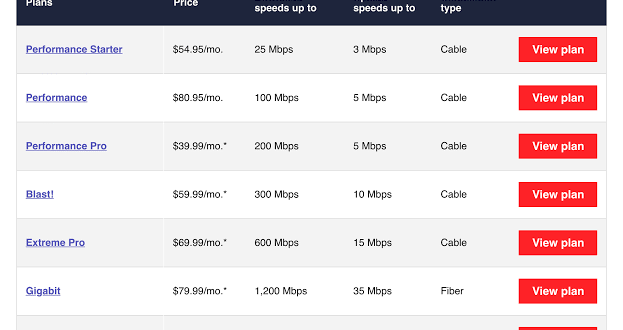
Different Xfinity plans offer different upload capabilities. If you regularly create videos, livestream, work remotely, or send large files, your current plan may simply not provide enough upstream bandwidth.
Check the upload speed associated with your plan and compare it with your speed-test results.
If you consistently get results close to your plan’s advertised performance, upgrading your equipment might not solve the problem. You may need a plan with higher upload capacity instead.
Download Speed Isn’t Upload Speed
This distinction causes a lot of confusion.
A connection can offer excellent download performance while providing significantly lower upload performance. Streaming movies requires lots of downloading, while uploading videos, livestreaming, and cloud backups require upstream bandwidth.
So if your downloads look fantastic but uploads crawl, don’t assume your entire internet connection has failed.
Check Xfinity for an Outage
Sometimes you can do everything correctly and still experience poor upload speeds because of an issue affecting the network.
Check Xfinity’s service status tools or account app for reported outages or connection problems in your area.
You can also look for signs such as:
[10/7/2026 1:37 AM] Content store 1: – Sudden upload-speed drops
– Frequent disconnections
– High latency
– Connection interruptions
– Problems across multiple devices
If several devices experience the same problem at the same time, the issue may sit outside your home network.
Check Your Coaxial Connections
If you use an Xfinity cable connection, inspect the coaxial cable connecting your gateway to the wall outlet.
Make sure the connectors fit securely. Look for obvious damage, sharp bends, loose connections, or worn cables.
A damaged or poorly connected cable can cause connection problems that affect performance.
Don’t randomly replace every cable in your house, though. Start with the cable connected directly to your gateway and test the connection afterward.
Try a Different Device
This simple test can save you a lot of unnecessary troubleshooting.
Run an upload speed test from another computer or phone connected to the same network.
If one device performs poorly while another performs normally, your Xfinity connection may work correctly. The problem could involve the slower device’s Wi-Fi adapter, drivers, software, or configuration.
If every device shows poor upload speeds, investigate the router, gateway, cables, plan, or Xfinity network.
When Should You Contact Xfinity?
If you’ve restarted the gateway, tested with Ethernet, reduced network congestion, checked cables, and tested multiple devices, you’ve already eliminated many common causes.
At that point, contact Xfinity support if your upload speed remains unusually low.
Give them useful information instead of simply saying, “My Wi-Fi is slow.” Tell them:
– Your internet plan
– Your measured upload speed
– Whether you tested through Ethernet
– Whether multiple devices experience the problem
– When the problem started
– Whether the problem happens consistently
– Whether you notice disconnections or high latency
That information gives the support team something concrete to investigate.
A Quick Xfinity Upload Speed Troubleshooting Checklist
Before you call support, run through this list:
1. Run several upload speed tests.
2. Test with an Ethernet cable.
3. Restart your Xfinity gateway.
4. Move the gateway to a better location.
5. Disconnect unnecessary devices.
6. Pause cloud backups and large uploads.
7. Test both 2.4 GHz and 5 GHz Wi-Fi.
8. Update your router and device software.
9. Check your coaxial connection.
10. Test another computer or phone.
11. Check for an Xfinity outage.
12. Compare your results with your plan’s expected upload speed.
This process helps you identify whether the problem comes from Wi-Fi, your device, your equipment, your plan, or the wider network.
Final Thoughts on Improving Xfinity Upload Speed
Improving your Xfinity upload speed doesn’t always require buying a new router or paying for a more expensive plan.
Start with the basics: run a proper speed test, use Ethernet, restart your gateway, reduce network congestion, improve router placement, and check your equipment.
If your upload speed remains consistently poor across multiple devices—even through Ethernet—then contact Xfinity and ask them to investigate the connection.
And remember, what matters most isn’t simply having a huge download number on your speed-test screenshot. If you regularly upload videos, livestream, work with cloud files, or send large files, upload speed deserves just as much attention.
So before you blame your internet connection and start threatening your router with retirement, run those tests first. You might discover that one small change fixes the whole problem. 🙂